
How to approve or reject eForm submissions
After parents submit a form, your team decides if it is complete. Klassy shows pending approvals and lets admins approve or reject with a reason.
Step by step
Open eForms
The card shows pending approvals waiting for you.
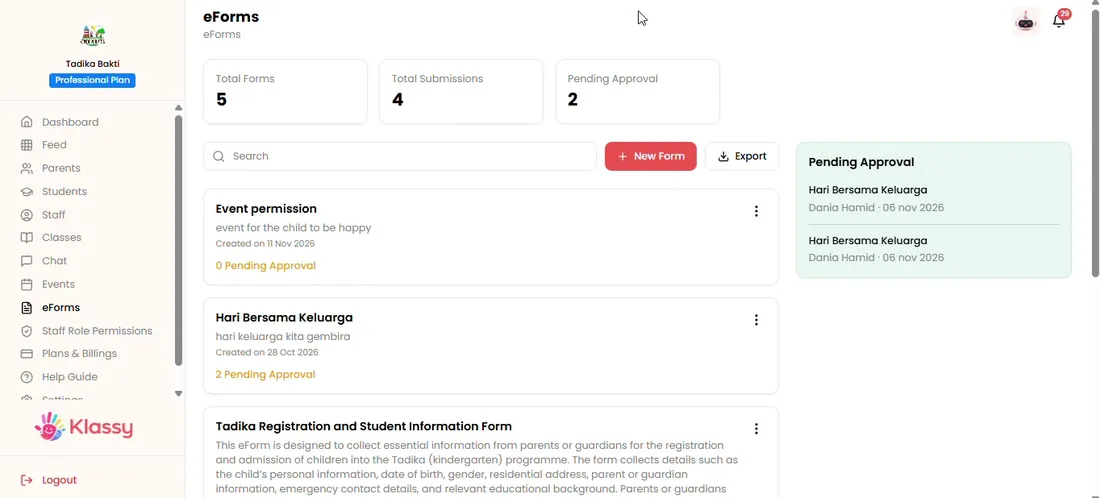
Step 1: Open eForms (admin panel) Open the form's approvals
Use the three-dot menu and choose approvals.
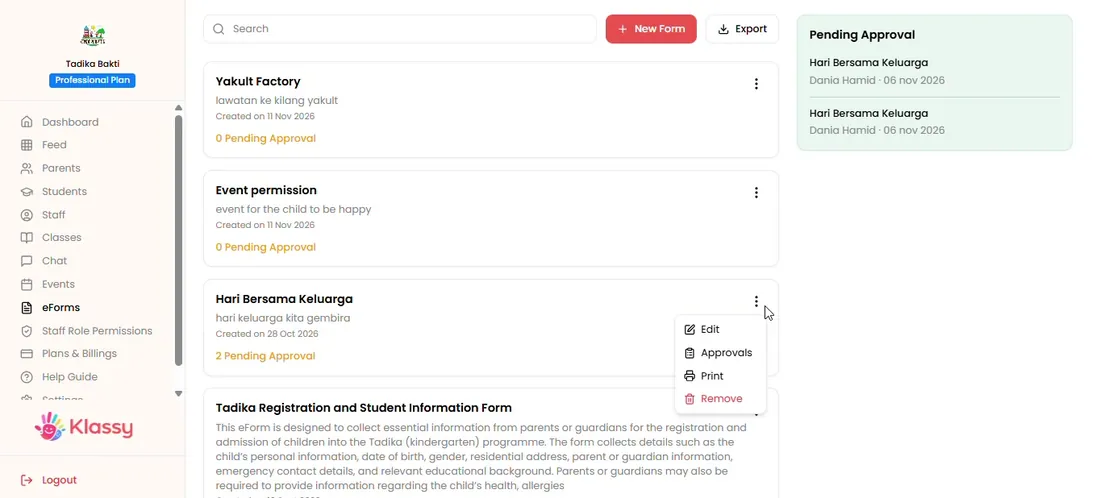
Step 2: Open the form's approvals (admin panel) Review submissions
See each parent's response, status and date.
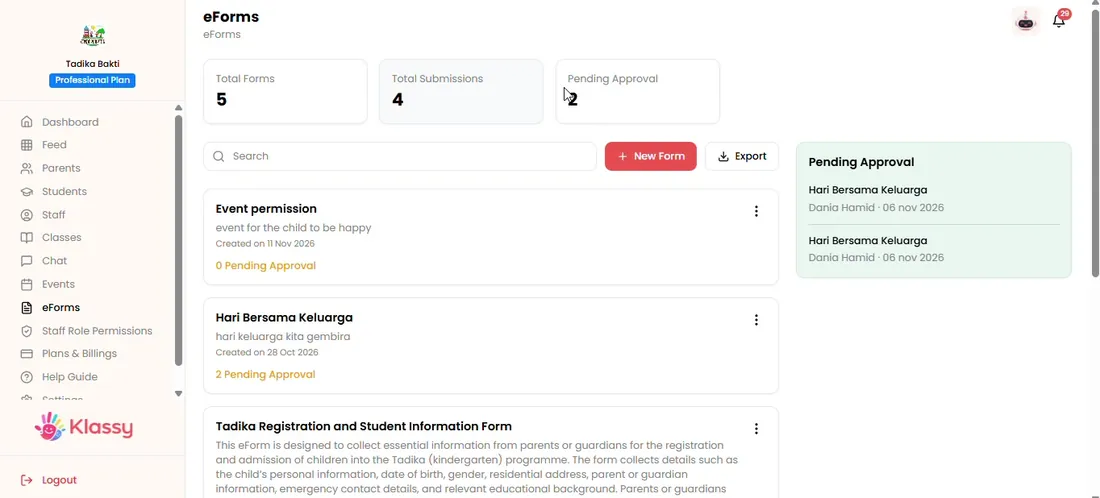
Step 3: Review submissions (admin panel) Approve
Choose Approve to accept the submission.
Step 4: Approve (admin panel) Reject with a reason
Choose Reject and type the reason so the parent knows what to fix.
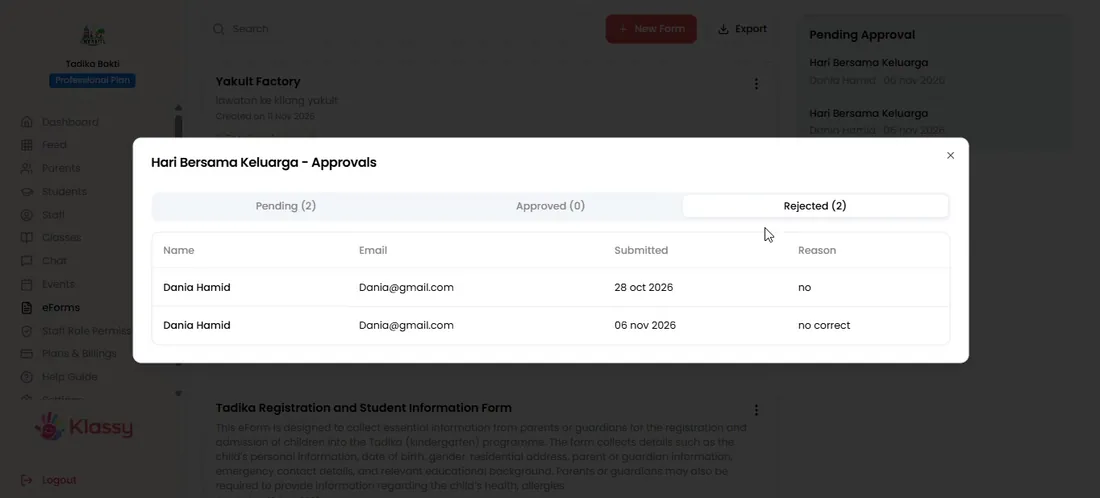
Step 5: Reject with a reason (admin panel)
Approval workflows for school forms
Some forms, such as trip consent, need a check before they count. Klassy builds this into the form so nothing is lost in a chat thread.
What you get with Klassy
- Pending approval queue
- Approve or reject with a reason
- Reports you can export
Klassy is used by childcare centres, early learning centres, kindergartens, preschools and private schools. It is built in Malaysia and also available for Malaysia, Thailand, Indonesia and Vietnam. See pricing.
Common questions
Must I give a reason when rejecting?
Yes. Add a reason so the parent knows what to correct.
Can parents resubmit?
Yes. A rejected form can be submitted again from History.
Where do I see all submissions?
In the form's approvals view, with status for each.
Want this for your school?
Klassy is AI-powered school management software for childcare centres, early learning centres, kindergartens, preschools and private schools. Message the team and we will show you how it fits your school.
Also available for Malaysia, Thailand, Indonesia and Vietnam.
Related guides
Browse the Help Centre: For schools For teachers For parents All guides