
How to mark students absent or late and clock them out
Not every child arrives on time, and some do not arrive at all. Klassy lets teachers record absences with a reason, late arrivals and clock-out, all from the student card.
Step by step
Tap the student card
Open your class and tap the child. A list of actions appears.
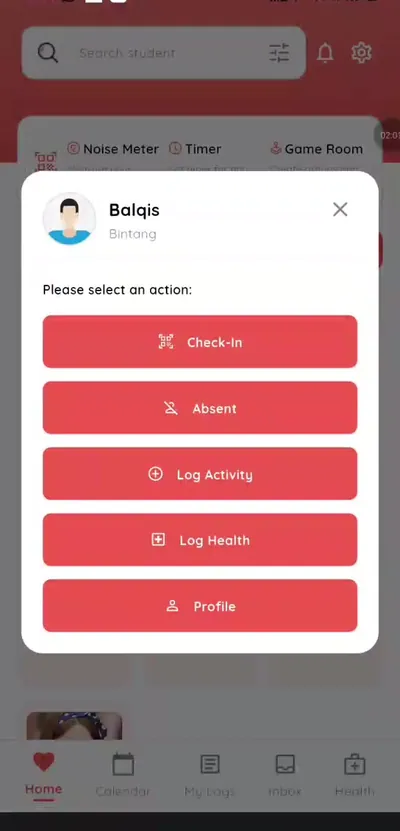
Step 1: Tap the student card (teacher app) Choose Absent
Select Absent to mark the child absent.
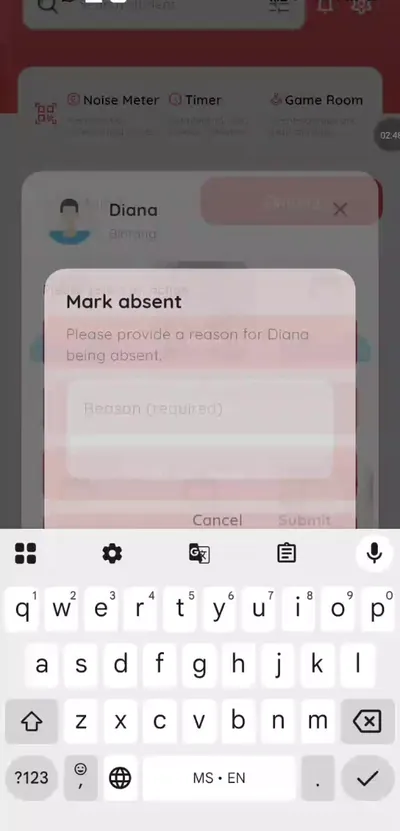
Step 2: Choose Absent (teacher app) Type the reason and submit
The parent receives a notification.
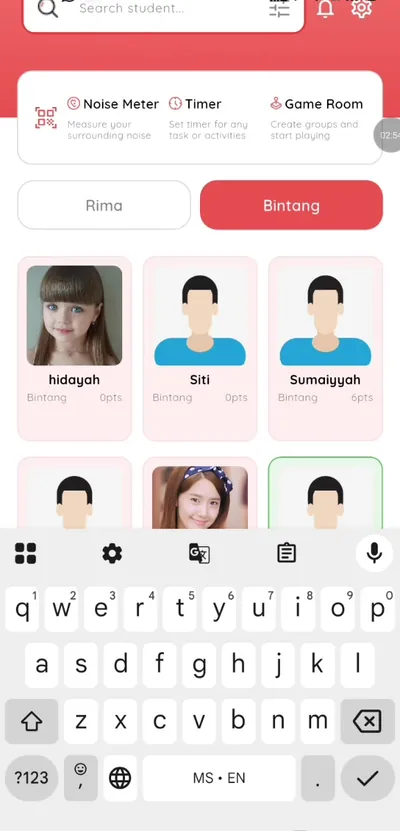
Step 3: Type the reason and submit (teacher app) Check in a late arrival
Check the child in as usual and Klassy shows the Late label.
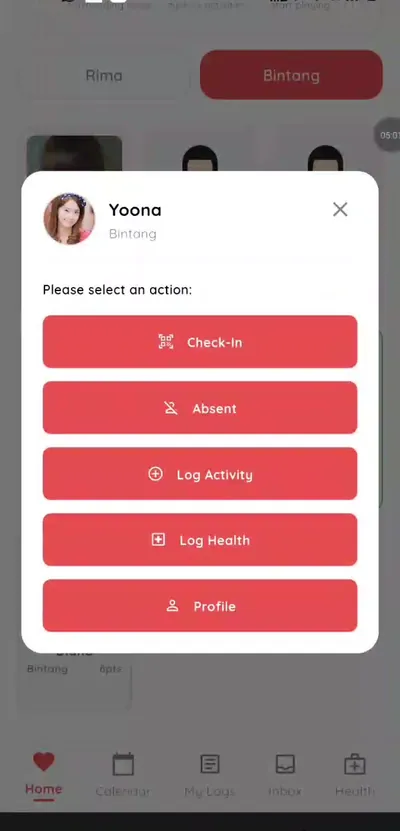
Step 4: Check in a late arrival (teacher app) Clock out at pick-up
Tap Clock out or scan the QR code again.
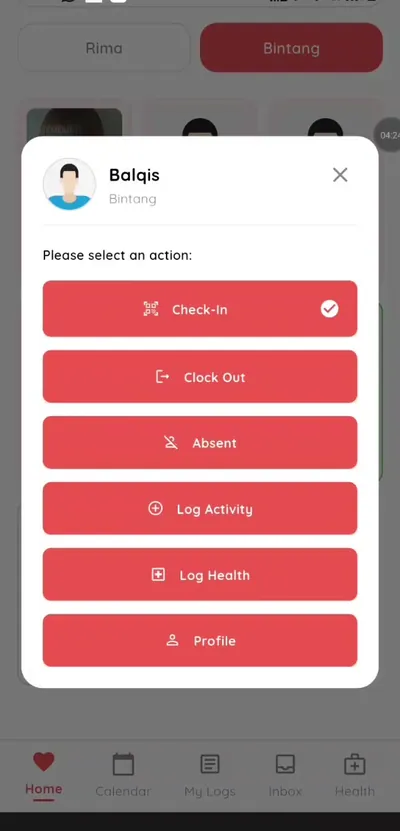
Step 5: Clock out at pick-up (teacher app) Open the student profile
See check-in and clock-out times plus attendance and health logs.
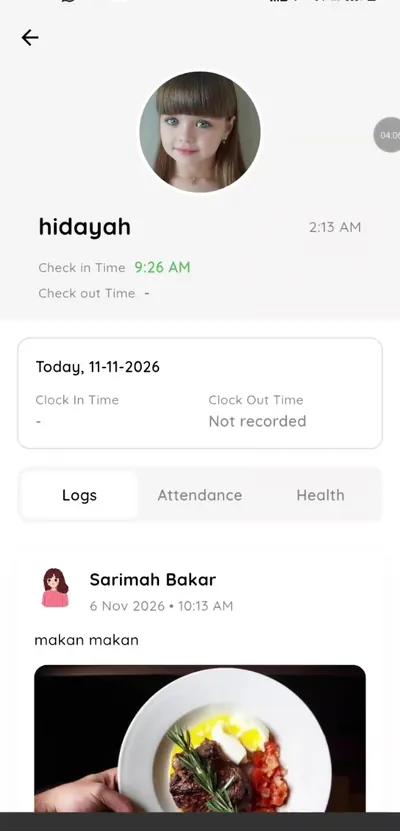
Step 6: Open the student profile (teacher app)
Accurate absence and lateness records
Reasons recorded at the time save follow-up calls later. Combined with clock-out times, Klassy gives you a complete picture of each child's day.
What you get with Klassy
- Absent with reason
- Late label on late arrivals
- Clock out by tap or scan
- Profile shows full day
Klassy is used by childcare centres, early learning centres, kindergartens, preschools and private schools. It is built in Malaysia and also available for Malaysia, Thailand, Indonesia and Vietnam. See pricing.
Common questions
Does the parent get a message when I mark absent?
Yes. The parent receives a notification.
Can I undo an absence?
Yes. If the child arrives, the status can be changed.
Where do I see clock-out times?
In the student's profile.
Want this for your school?
Klassy is AI-powered school management software for childcare centres, early learning centres, kindergartens, preschools and private schools. Message the team and we will show you how it fits your school.
Also available for Malaysia, Thailand, Indonesia and Vietnam.
Related guides
More in Attendance and check-in
Browse the Help Centre: For schools For teachers For parents All guides