
Parent app settings: change language, password and notifications
A few settings make the app fit you.
Step by step
Open Settings
From the gear icon on the home screen.
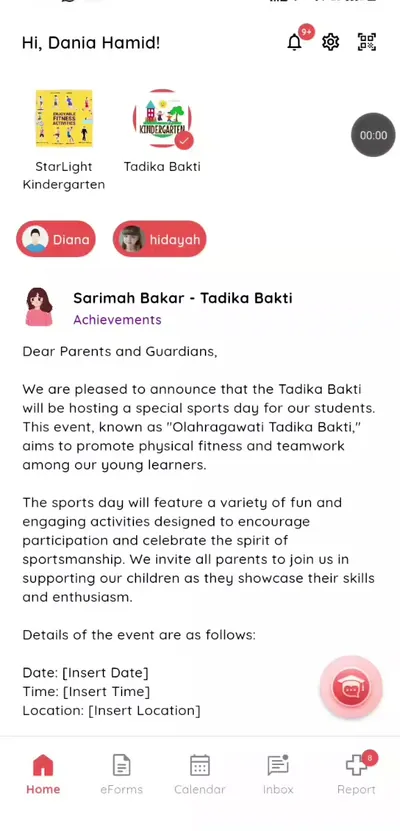
Step 1: Open Settings (parent app) Choose language
English or Bahasa Malaysia.
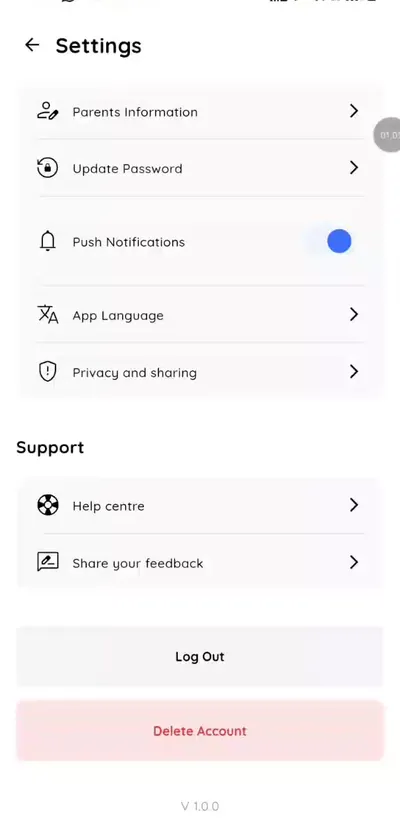
Step 2: Choose language (parent app) Change password
Update your password.
Step 3: Change password (parent app) Notifications
Manage alerts.
Step 4: Notifications (parent app) Find help and feedback
Settings also links to the help centre and a form to share feedback with the school team.
Make the parent app yours
Choose your language and keep your account secure.
What you get with Klassy
- Language choice
- Password
- Notifications
Klassy is used by childcare centres, early learning centres, kindergartens, preschools and private schools. It is built in Malaysia and also available for Malaysia, Thailand, Indonesia and Vietnam. See pricing.
Common questions
Can I change language?
Yes.
How do I reset my password?
Ask your school.
Can I turn off notifications?
Yes, in Settings.
Want this for your school?
Klassy is AI-powered school management software for childcare centres, early learning centres, kindergartens, preschools and private schools. Message the team and we will show you how it fits your school.
Also available for Malaysia, Thailand, Indonesia and Vietnam.
Related guides
Browse the Help Centre: For schools For teachers For parents All guides