
How to schedule, edit and delete feed posts
Staff are busy, and sometimes a photo is ready before the right moment to share it. Klassy lets admins schedule posts and fix them afterwards.
Step by step
Create the post
Open Feed and select Add Log.
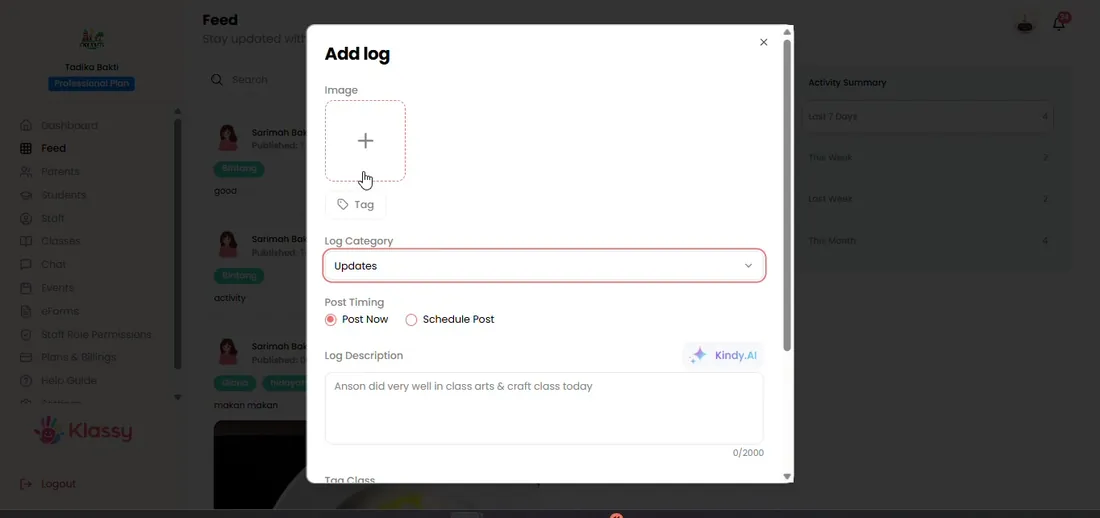
Step 1: Create the post (admin panel) Choose Schedule post
Pick the date and time the post should go live.
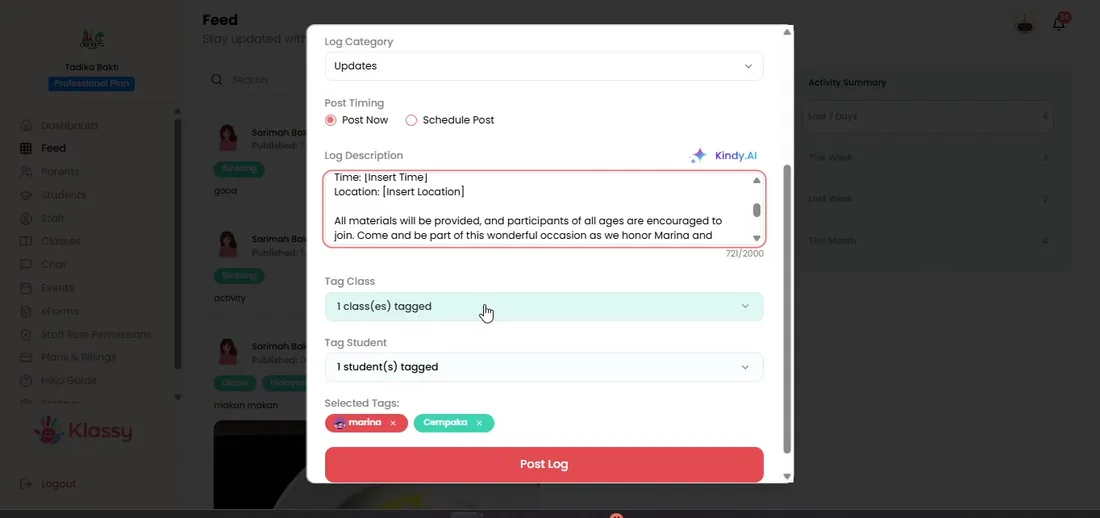
Step 2: Choose Schedule post (admin panel) Review the activity summary
The feed shows the last 7 days, this week or last week.
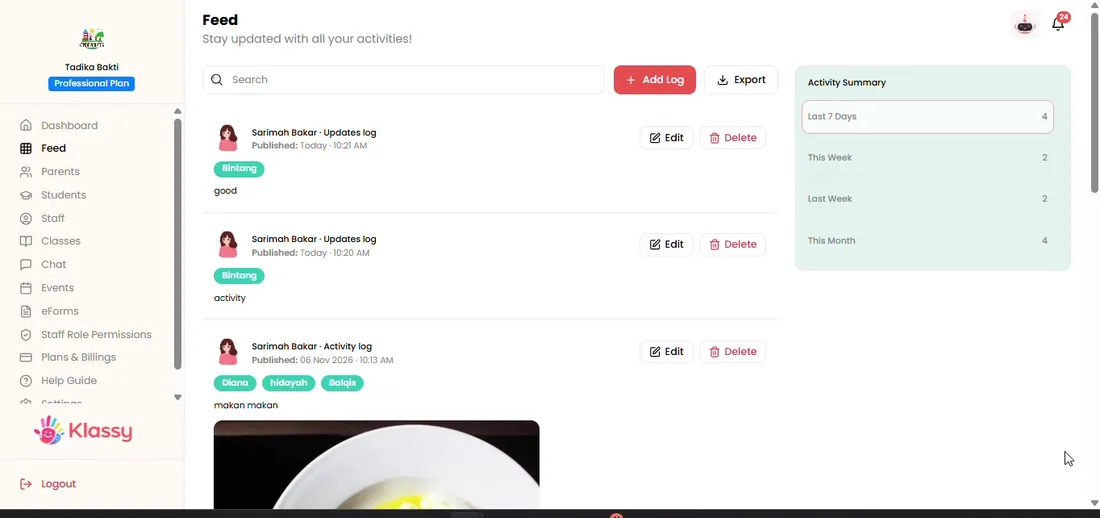
Step 3: Review the activity summary (admin panel) Open a post to edit
Use the post menu to edit the text or add more students.
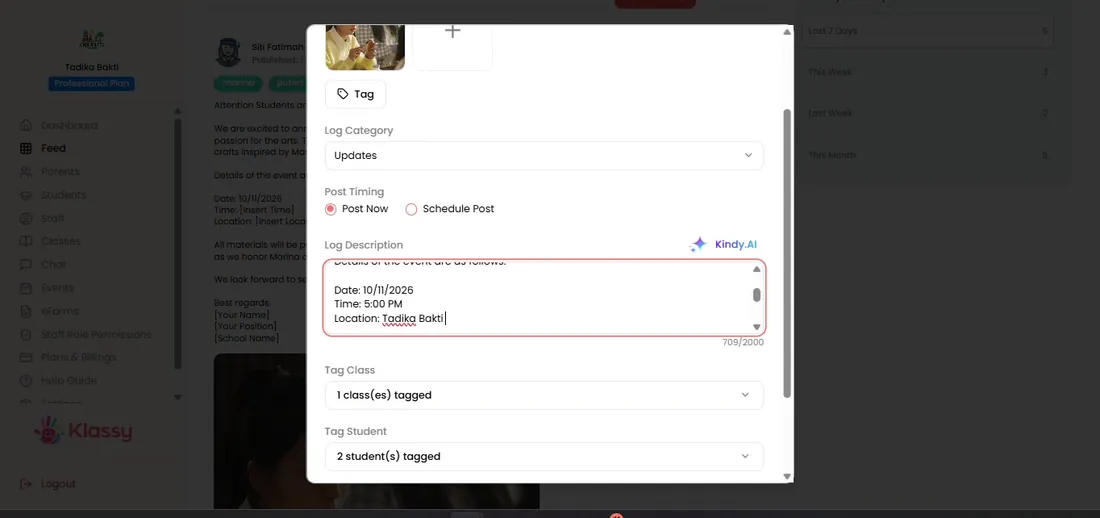
Step 4: Open a post to edit (admin panel) Delete a post
Delete removes it from the parents' feed.
Step 5: Delete a post (admin panel)
Control what parents see and when
Scheduling helps a school share the day's highlights at the right time, such as after pick-up. Editing and deleting give admins a safety net.
What you get with Klassy
- Schedule for any date and time
- Edit text and tags later
- Delete mistakes immediately
- Activity summary for the week
Klassy is used by kindergartens, tadika, preschools, childcare centres, tuition centres and private schools. It is built in Malaysia and also available for Australia, Thailand, Indonesia and Vietnam. See pricing.
Common questions
Can I edit a post after it is live?
Yes. Use the post menu to edit or add students.
Can teachers schedule posts?
Admins schedule from the admin panel. Teachers post from their app.
What happens when I delete a post?
It is removed from the feed that parents see.
Want this for your school?
Klassy is AI-powered school management software for kindergartens, tadika, preschools, childcare centres, tuition centres and private schools. Message the team and we will show you how it fits your school.
Also available for Australia, Thailand, Indonesia and Vietnam.
Related guides
More in Photo feed and daily logs
Browse the Help Centre: For schools For teachers For parents All guides