
Teacher app notifications and settings
Notifications keep teachers informed without checking every screen.
Step by step
Open Notifications
See the latest alerts.
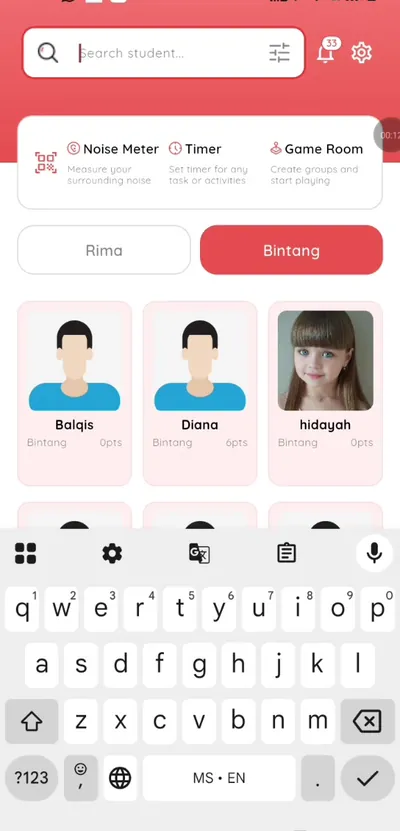
Step 1: Open Notifications (teacher app) Tap an alert
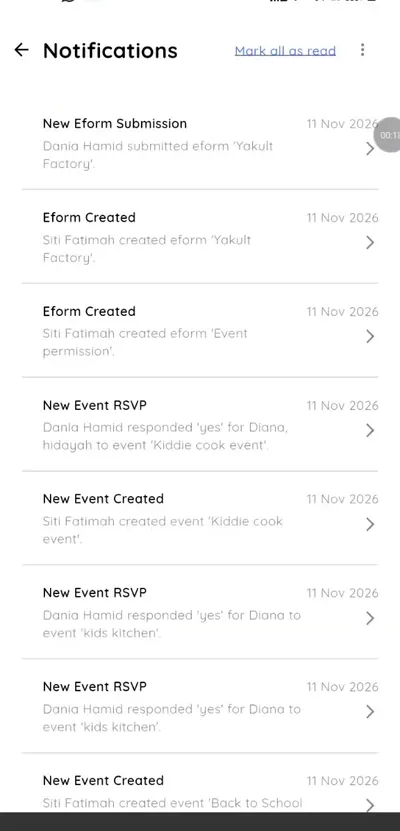
Open the related item.
Step 2: Tap an alert (teacher app) Open Settings
Change language and password.
Step 3: Open Settings (teacher app) Check your Inbox
New parent messages also appear in the Inbox tab.
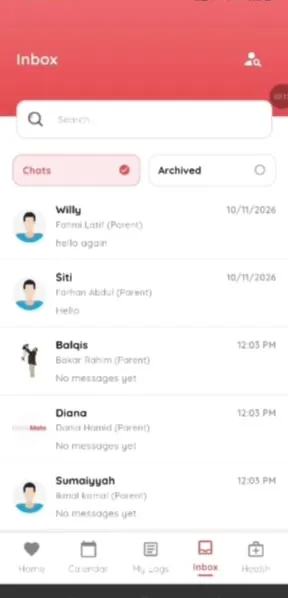
Step 4: Check your Inbox (teacher app) Return to your class
Go back to the class view to act on what an alert tells you.
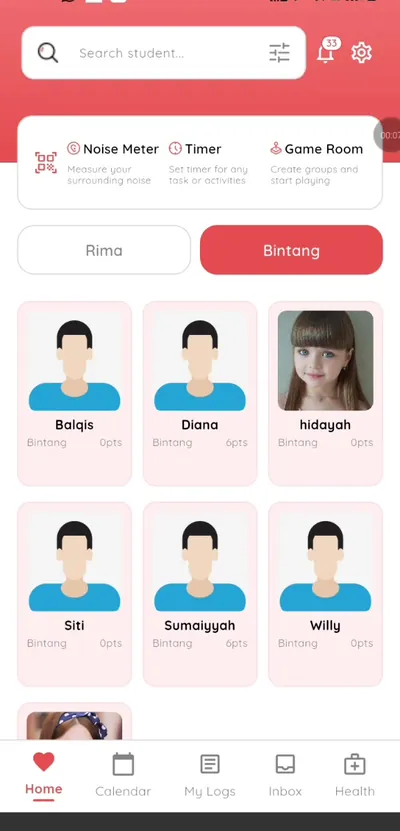
Step 5: Return to your class (teacher app)
Stay on top of school activity
Alerts for events, forms and messages mean teachers respond quickly.
What you get with Klassy
- Alerts for events, forms and chats
- Tap to open
- Language settings
Klassy is used by kindergartens, tadika, preschools, childcare centres, tuition centres and private schools. It is built in Malaysia and also available for Australia, Thailand, Indonesia and Vietnam. See pricing.
Common questions
What triggers a notification?
New messages, event RSVPs and form updates.
Can I change the language?
Yes, in Settings.
Do parents get notifications?
Yes.
Want this for your school?
Klassy is AI-powered school management software for kindergartens, tadika, preschools, childcare centres, tuition centres and private schools. Message the team and we will show you how it fits your school.
Also available for Australia, Thailand, Indonesia and Vietnam.
Related guides
More in Teacher app and classroom tools
Browse the Help Centre: For schools For teachers For parents All guides