
How to create staff roles and permissions for your school
Role based permissions are the first thing to set up in Klassy. A role decides which modules a staff member can open, so a teacher sees attendance and logs while your front desk handles eForms and chat. Do this before adding staff, because every staff member needs a role.
Step by step
Open Staff Role Permission
Log in to the admin panel and choose Staff Role Permission from the sidebar. Existing roles are listed here.
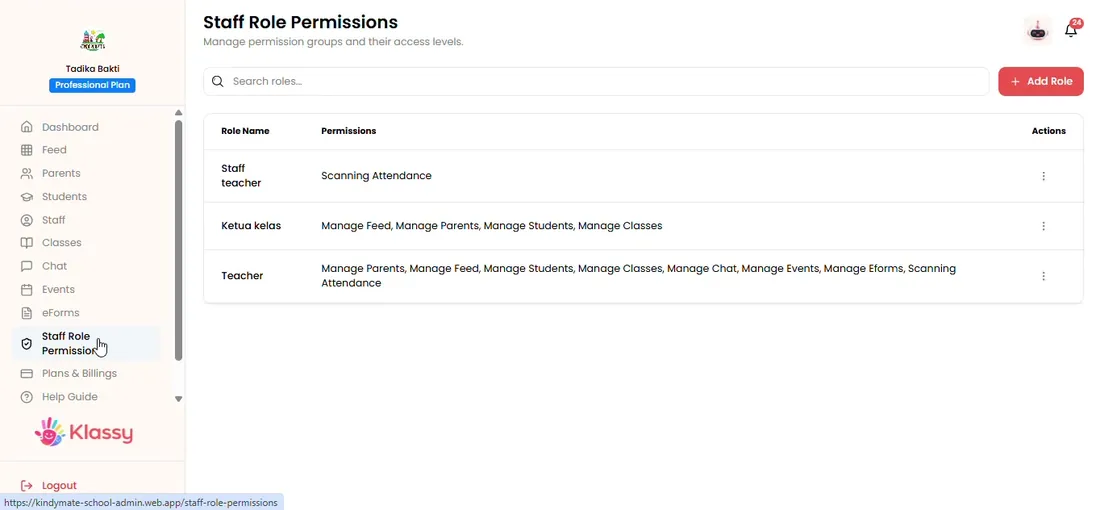
Step 1: Open Staff Role Permission (admin panel) Select Create to add a role
Give the role a clear name such as Teacher, Front Desk or Principal.
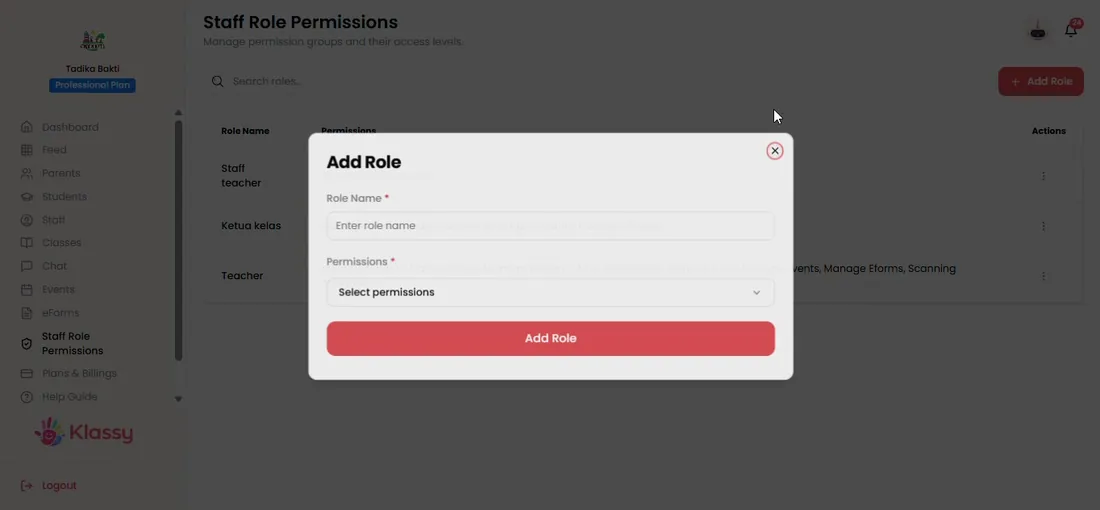
Step 2: Select Create to add a role (admin panel) Choose the modules the role can access
Tick the modules this role should open, such as attendance, feed, chat or eForms. Leave everything else off.
Step 3: Choose the modules the role can access (admin panel) Save the role
Save to create the role. It now appears in the role dropdown when you add staff.
Step 4: Save the role (admin panel) Edit permissions later
Use the edit option on any role to change its modules. The change applies to every staff member with that role.
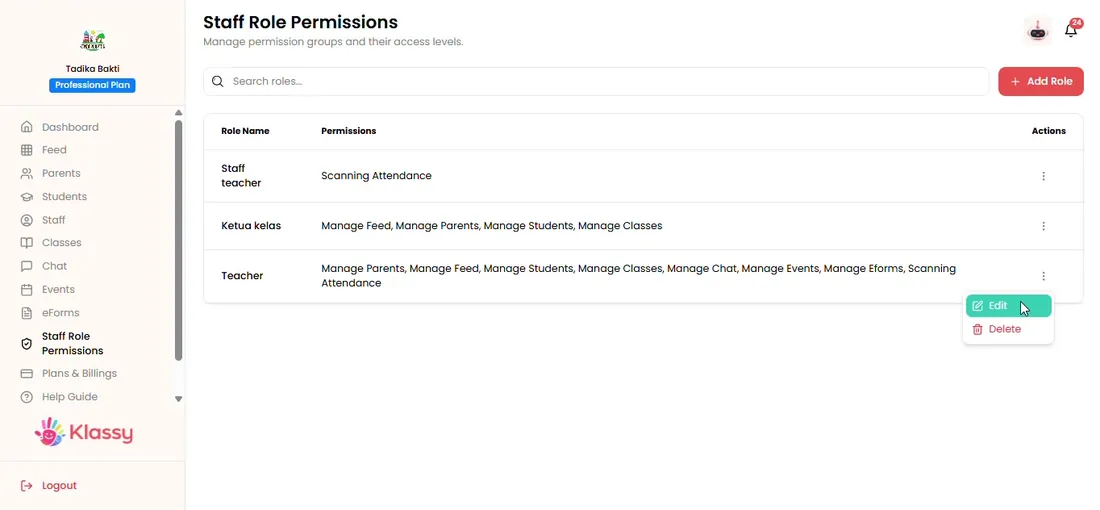
Step 5: Edit permissions later (admin panel)
Role based access for school software
Schools hold sensitive information about children and families. Role based permissions keep that information with the people who need it, and make training easier because each person sees a shorter menu.
Because permissions belong to the role, not the person, a new teacher only needs the Teacher role and is ready to go.
What you get with Klassy
- Choose exactly which modules each role opens
- Edit a role once and every staff member updates
- Cleaner menus for non-admin staff
- Protects student and parent information
Klassy is used by kindergartens, tadika, preschools, childcare centres, tuition centres and private schools. It is built in Malaysia and also available for Australia, Thailand, Indonesia and Vietnam. See pricing.
Common questions
Can I change a role's permissions later?
Yes. Open Staff Role Permission, edit the role and save. The change applies to every staff member with that role.
How many roles do I need?
Most schools use two: an admin role and a teacher role. Add more only when someone needs a different set of modules.
What happens if a staff member has no role?
A staff member must have a role before they can sign in, because the role decides which modules they see.
Want this for your school?
Klassy is AI-powered school management software for kindergartens, tadika, preschools, childcare centres, tuition centres and private schools. Message the team and we will show you how it fits your school.
Also available for Australia, Thailand, Indonesia and Vietnam.
Related guides
More in Set up your school
Browse the Help Centre: For schools For teachers For parents All guides